


mybb Support
Assigning fees
Last updated on May 12, 2025
How to assign a fee
You must Create a fee before you can assign them.
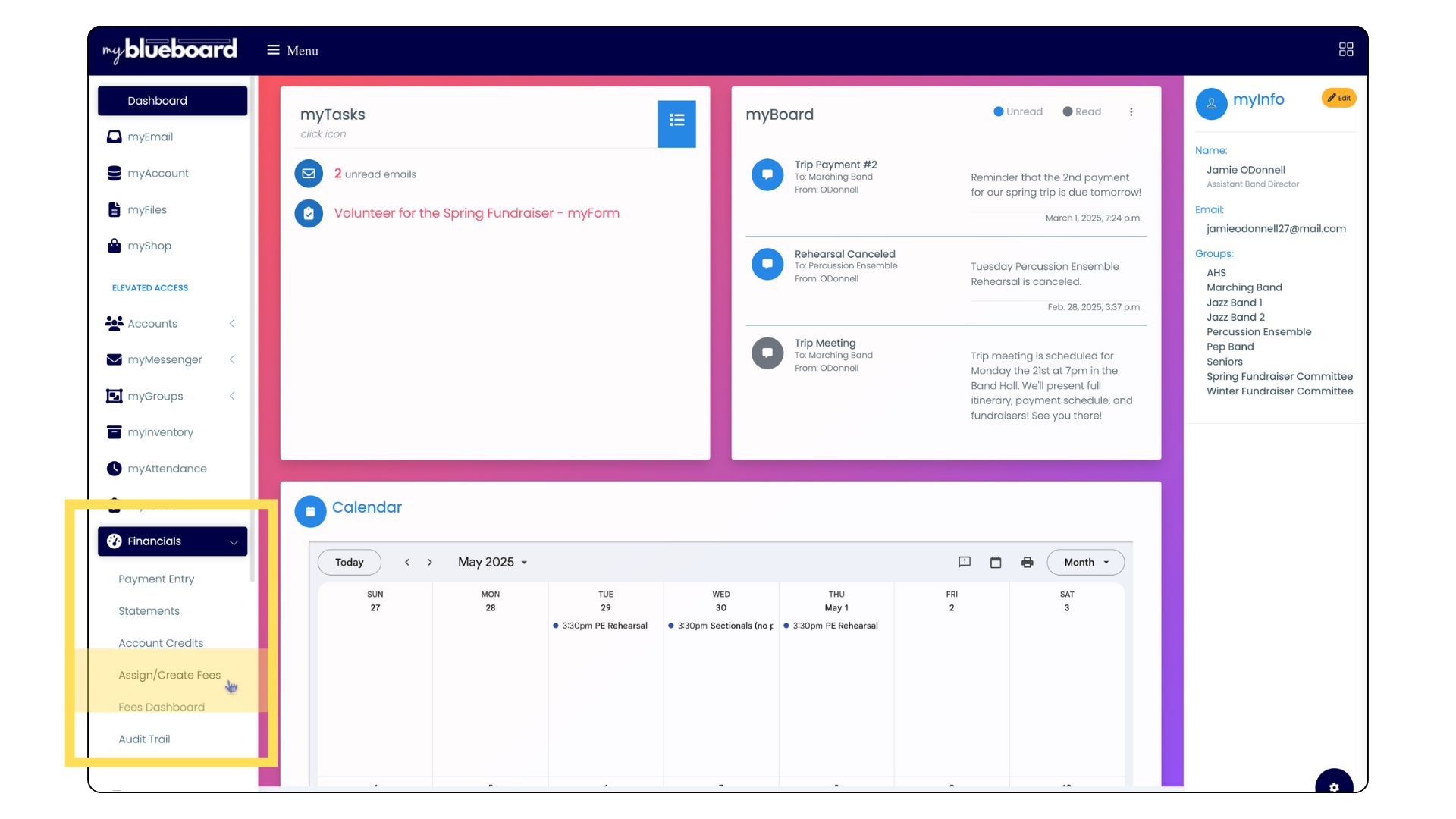
- Navigate to the Financials tab on the left side of your dashboard.
- Select the
Assign/Create Fees tab (Image 1).
Assigning a fee is an easy 3-step process.
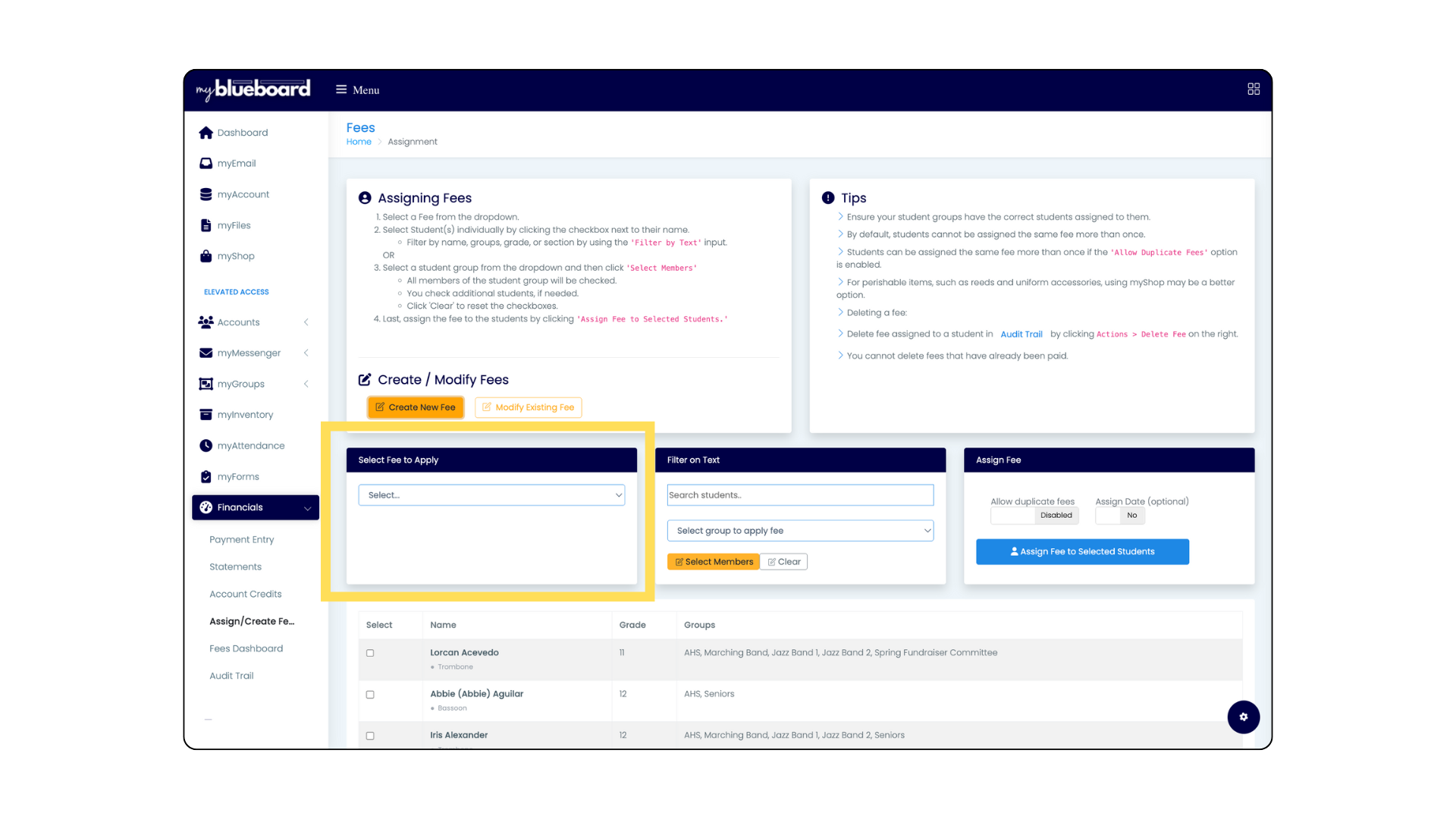
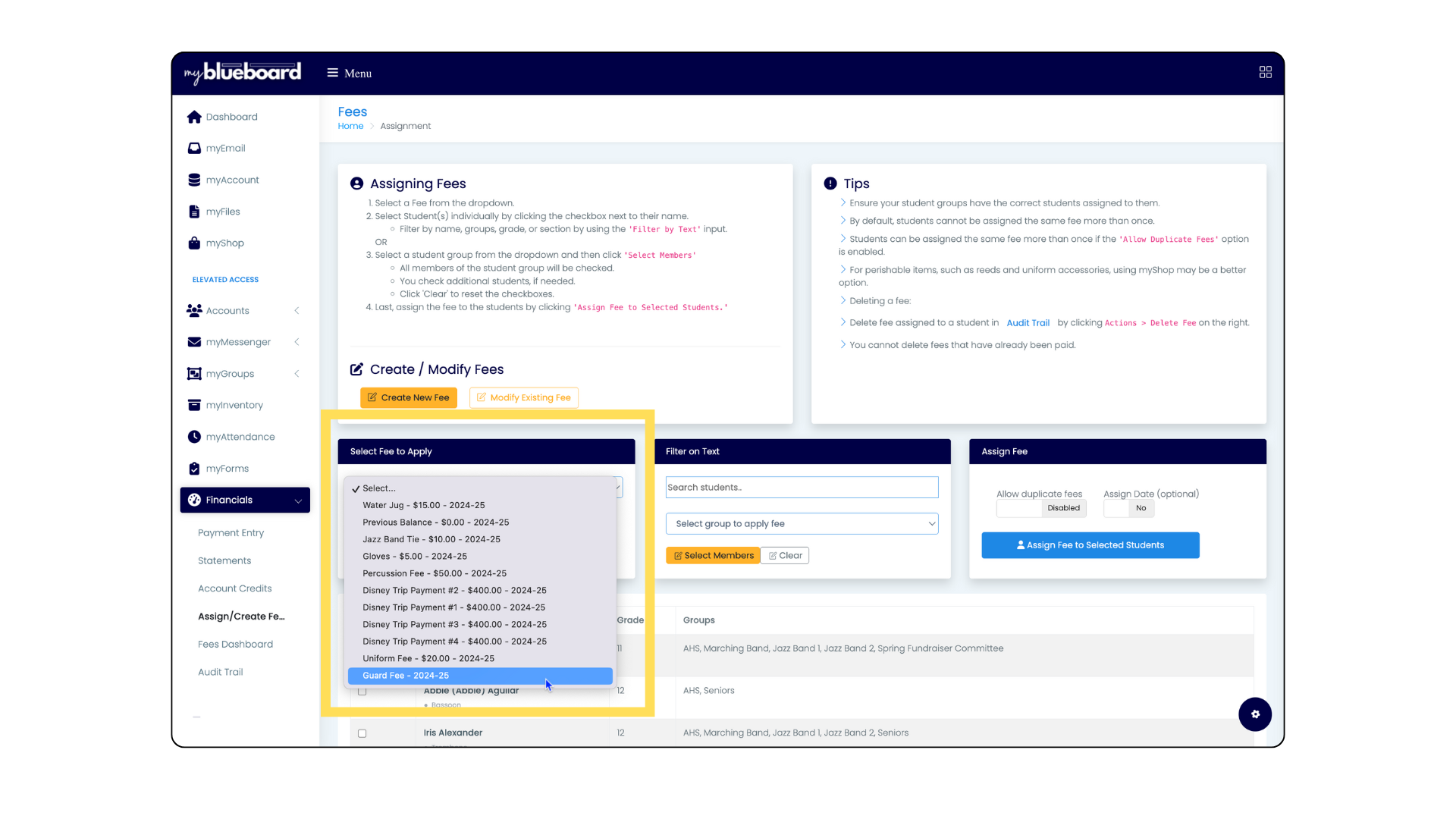
1. Select the fee you want to assign from the Select Fee to Apply box (Images 2 and 3).
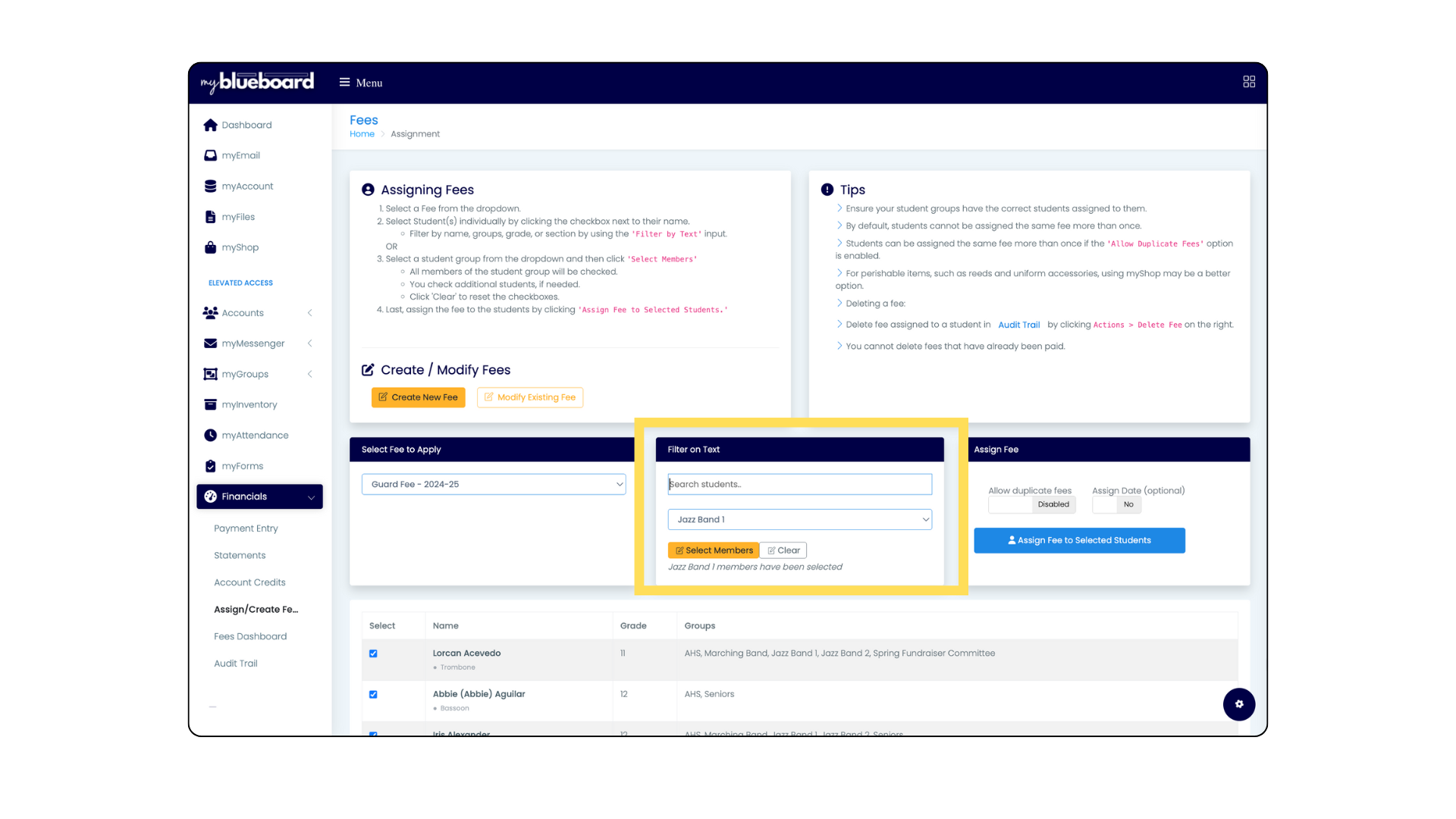
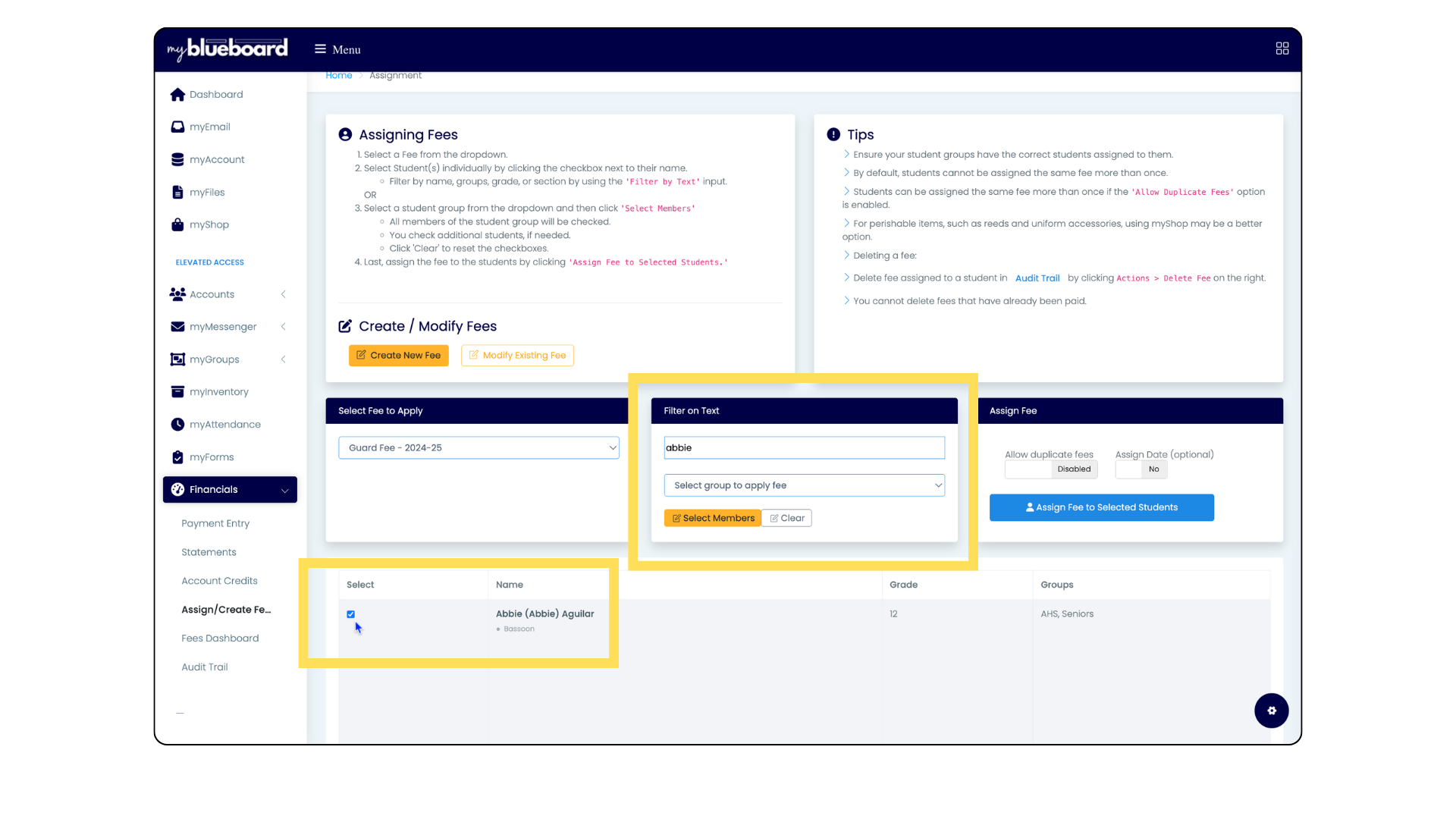
2. Next, you will use the Filter on Text box to search for individual students or to apply the fee to an entire group (Image 4).
- To apply the fee to individual students, use the search bar in the Filter on Text box. Their name will populate below. Select the blue checkbox next to their name to select their name (Image 5).
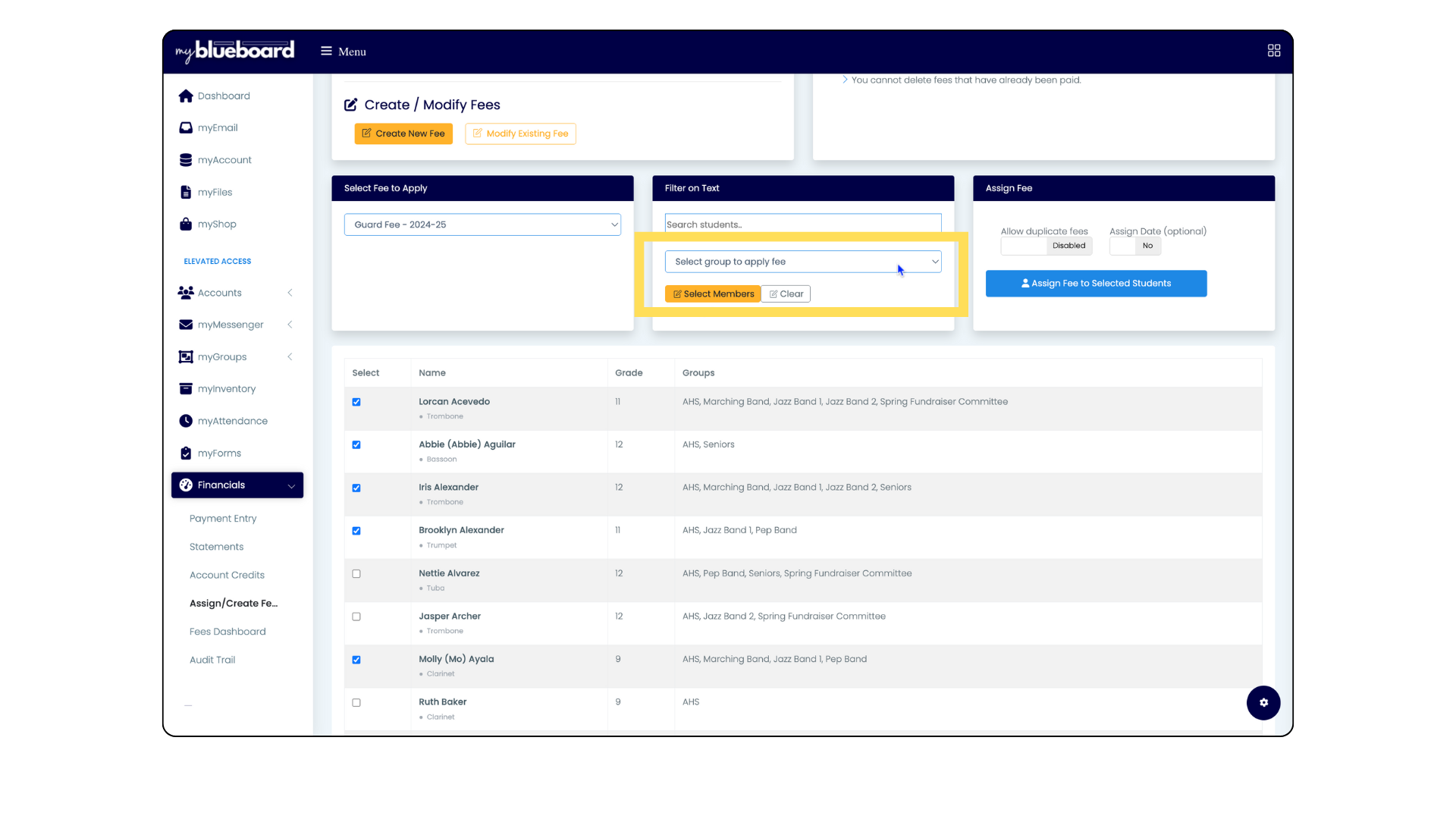
- To apply a fee to a group, use the Select group to apply fee dropdown to choose a group (Image 6) .
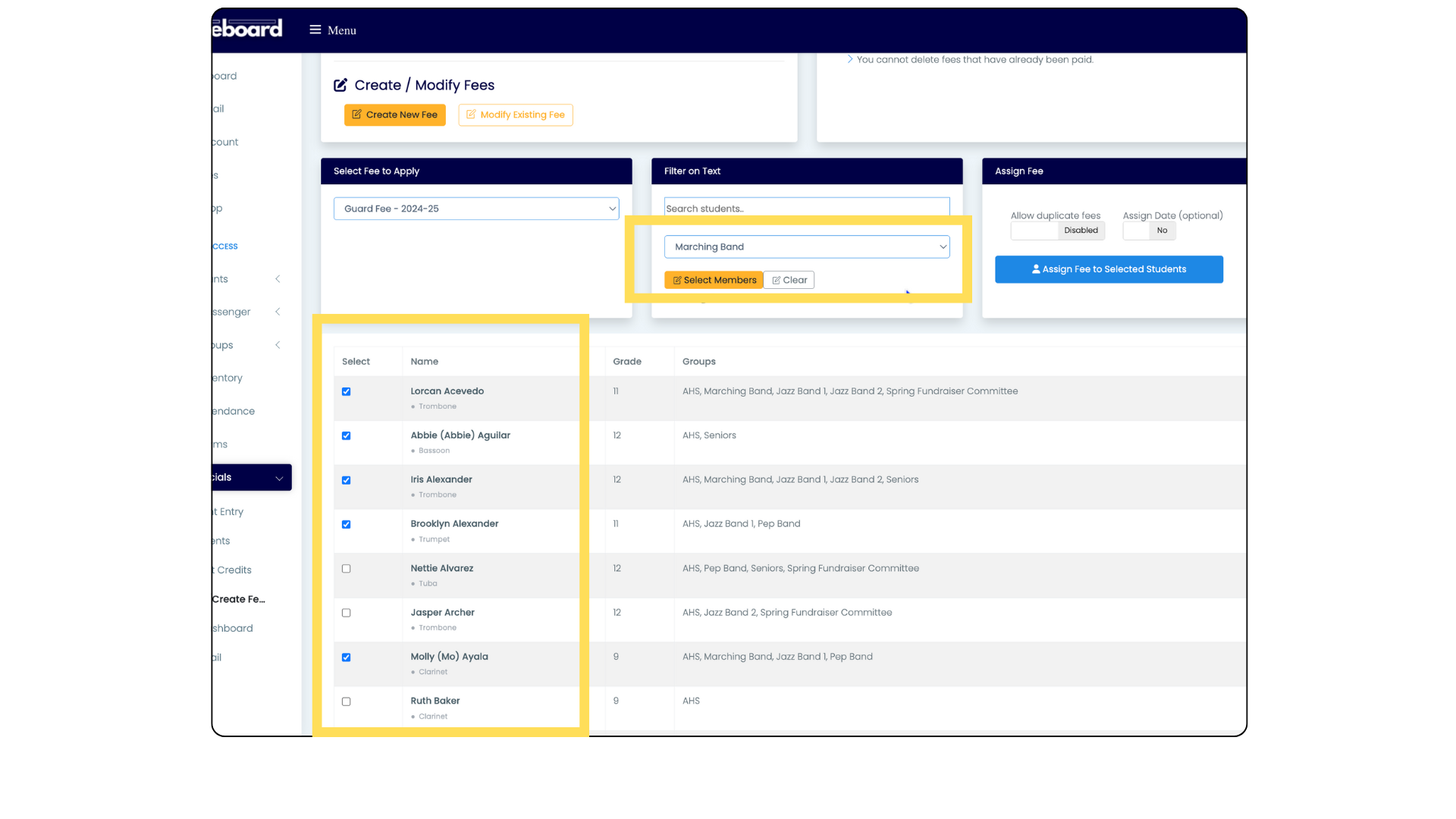
- Then, click the Select Members button. This will select the checkbox of every member who is in that group (Image 7). Under the Select Members button will be a confirmation message that your group members have been successfully selected. You can select additional students or remove students by deselecting their checkbox.
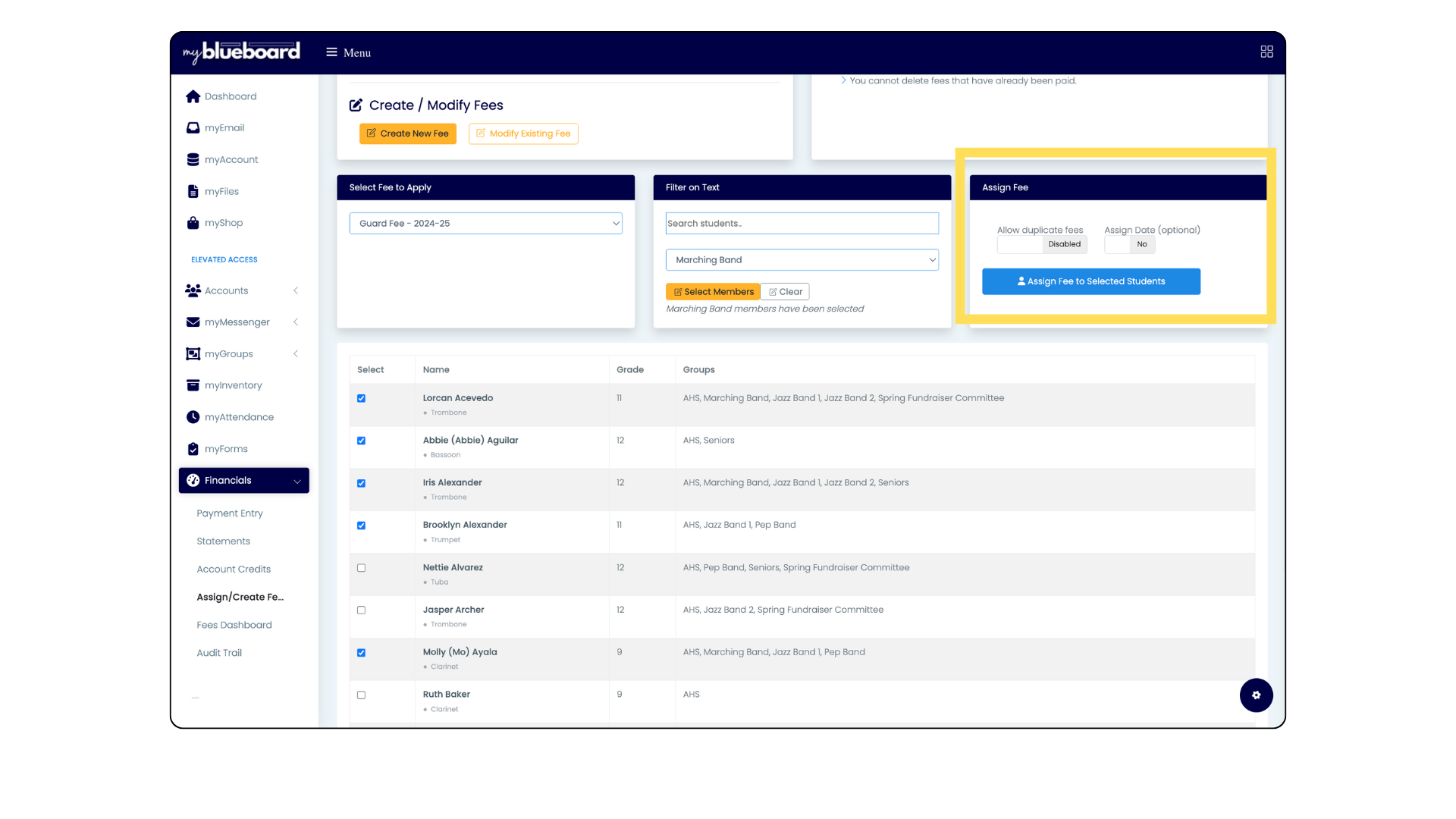
3. In the Assign Fee box, you have the option to allow duplicate fees (by default, students cannot be assigned the same fee twice) or schedule the assign date (Image 8).
Finally, click the Assign Fee to selected students button (Image 8).
Helpful Tips
- Ensure your student groups have the correct students assigned to them.
- For perishable items, such as reeds and uniform accessories, using myShop may be a better option.
- You can delete fees in the Audit Trail feature.
- You cannot delete fees that have already been paid.