


Getting Started with myblueboard
FOR STUDENTS AND PARENTS
QUICK LINKS
Using myblueboard
mybb mobile app
myChat
The Getting Started Checklist
Welcome to myBlueboard, an easy-to-use app designed to keep school and community programs well informed, organized, and successful.
Getting started is easy. We’ve provided a simple checklist with corresponding step-by-step instructions for each point. If you need any additional support, email support@myblueboard.com.
- Register student account
- Register parent account(s)
- Verify your email
- Log in at your custom URL when you receive account approval email
- Fill out your profile
- Find the student’s 4-digit code
- Link parent and student accounts
- Explore your dashboard
- Check out the
Using myBlueboard section for simple step-by-step instructions on how to use the various features.
What you can do with myblueboard
- Never miss another email - view all program-related emails in your app
- Group chats
- Push notifications for updates
- Volunteers can receive expanded access with specific roles and permissions
- Link multiple family members to student accounts
- View itemized fees and credits
- View current account statements and download invoices
- Make secure fee payments
- Make partial payments, split payments
- View itemized payment history
- Purchase items in merchandise shop
- Purchase tickets to events
- Access forms and file share
- Save money with industry-low processing fees
Register a new account
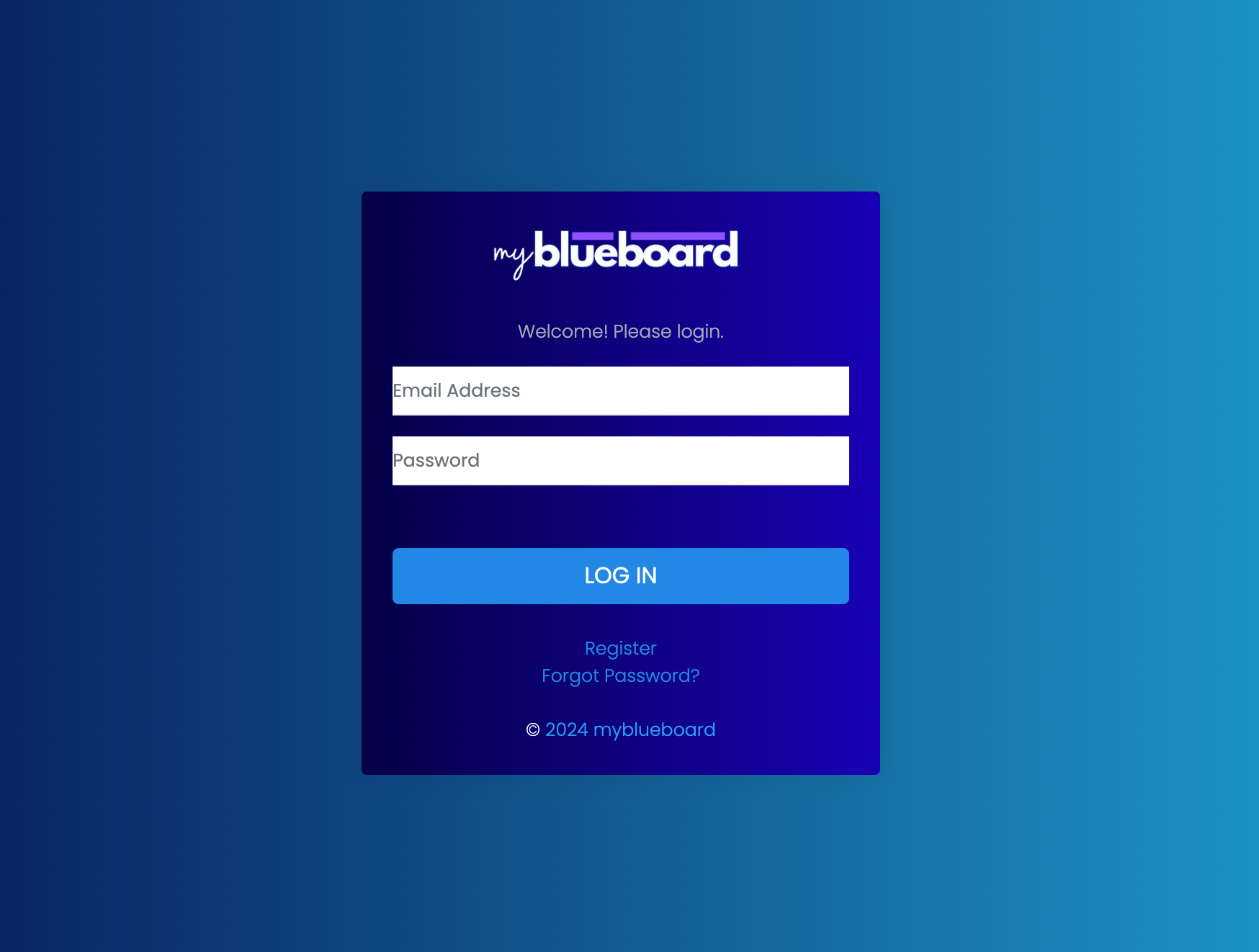
- To register a new parent or student account, your director or admin will provide a custom program website link.
- Visit the website and click Register below the login button. Select whether you’re creating a Student or Parent account, enter your information, and create a password.
- After submitting your request, you’ll receive an email to verify your email address. Once verified and approved by your program’s director/admin, you can log in using your email and password and program name.
Finding the 4-digit code
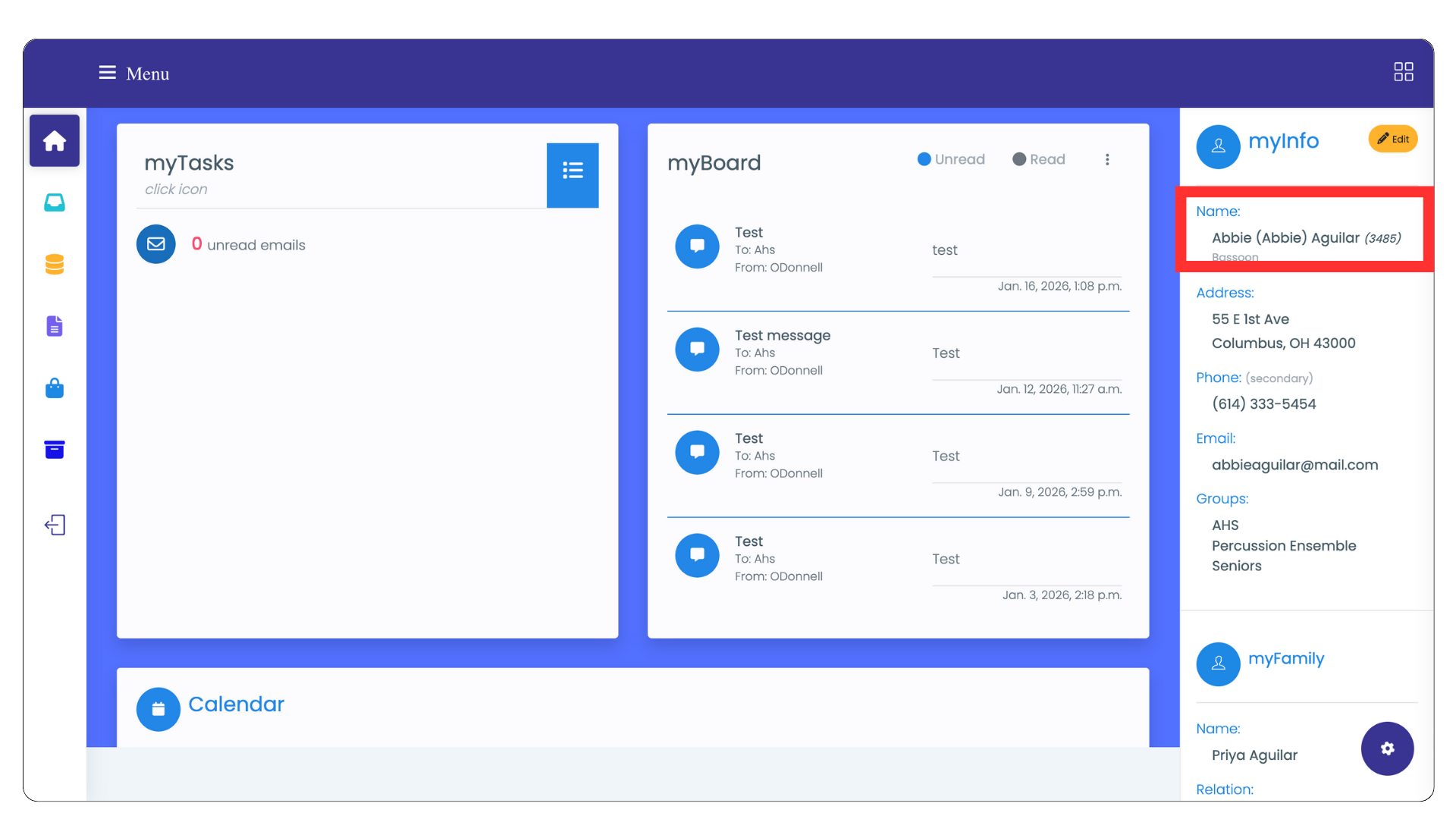
Each student has a randomly generated 4-digit code.This code is not the student ID. You may think of it as a temporary passcode. It is a security feature for linking student and parent accounts, which allows parents to view account statements and receive emails sent to students.
- The 4-digit code is next to the student's name in the myInfo bar when the student is logged into their account.
- The Director/Admin can also provide this code if needed.
- Codes are changed frequently for security.
Linking parent and student accounts
- First, find your student’s 4-digit code. You will need it to link accounts.
- Navigate to the myFamily panel on the right side of your dashboard.
- Select the yellow Add button.
- Select Link my Student from the dropdown.
- Enter the 4-digit Student Code and select your relation to the student.
- Select the Link Account button.
- After registering, parents will see a section called myStudent(s) on the far right of their dashboard (mobile: the myStudent section can be viewed by selecting the myInfo tab.
- Parents can add multiple children.
- Once connected, parents will see each child's itemized invoice under the
myAccount tab in the menu.
Editing parent and student relationship
- Select the Add button next to myStudent section.
- Select Edit relation.
- Select your student and select the new relation from the dropdown menu.
- Select the Save Changes button.
Add or edit student and parent profile information
- Navigate to myInfo on the right side of your dashboard.
- Add your information and select Save Changes.
- If you change your email address, you will need to verify it again before the change is reflected in the database.

Calendar
- Your music program's public Google Calendar can be accessed by scrolling down on your main dashboard.
- Click on an event and a pop up will show you the date, time, and description of the event. You can see more event details and copy the event to your personal Google Calendar from here as well.
- Only directors or admins can send emails in myblueboard.
- You can read your emails by
Fees and Statements
- Parents and students can access their fee statements by selecting myAccount from the left side of the dashboard.
- On the left side of the statement, you will see Total Fees, Payments (total payments made), a pending Balance, Total Accrued Credits, Credits Used, and Credits Available Balance.
- On the right side of the statement, you’ll see a section with three tabs: Fees, Credits, and Payments. Under the Fees tab, you can find itemized fees (by child, if a parent has more than one child attached to their account). The Credits tab will show available and used credits/miscellaneous payments.
- You can access downloadable invoices under the Payments tab.
Pay Fees
- Select a fee from the Fees tab. This will add it to your Cart.
- Select the yellow Cart icon in the top right corner. This will generate an invoice.
- Select Proceed to Payment to make a payment through PayPal. Select Save to download to your device.
- If you would like to split a fee, an Admin or Director can do that for you.
Quick Links
- Directors or Admins can set up custom links for your convenience in the 4-square icon dropdown in the top right of your dashboard.
Reset Password
- Students and parents can reset their passwords unassisted by navigating to your custom URL and selecting Reset Password.
- An email will be sent with a link to reset the password.